Postingan

Menampilkan postingan dengan label CA

How to make an CA, Intermediate CA / Sub CA, and Server Certificate with OpenSSL command
Gambar
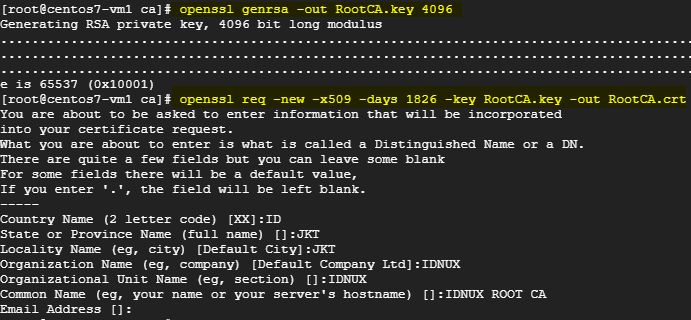
- Keep RootCA.key and IntermediateCA.key securely. - Upload RootCA.crt and IntermediateCA.crt to client's system or browser. - Use IntermediateCA to sign server certificate needs (webserver, FTP server, mail server, etc) This configuration just example, configure the certificate name, attribute according to your needs. In this tutorial we use OpenSSL command but you can also use CA.pl script from OpenSSL. 1. Generate Root Certificate key. openssl genrsa -out RootCA.key 4096 2. Generate Root certificate. openssl req -new -x509 -days 1826 -key RootCA.key -out RootCA.crt Generate Intermediate CA Create a file subca.conf with the following contents: 1. Generate Intermediate CA certificate key openssl genrsa -out IntermediateCA.key 4096 2. Generate Intermediate CA CSR . openssl req -new -key IntermediateCA.key -out IntermediateCA.csr 3. Sign the Intermediate CA by the Root CA. openssl x509 -extfile subca.conf -extensions v3_subca -req -days...

How to make a root CA

Gambar
This is how to  make a self signed root CA With OpenSSL command With Windows CA via PowerShell This above command install a new Standalone Root CA with default settings. Read more:  https://docs.microsoft.com/en-us/powershell/module/adcsdeployment/install-adcscertificationauthority?view=win10-ps Import Root CA on Windows with Powershell

Microsoft Active Directory Certificate Services CA Web Enrollment

Gambar
Ada beberapa software Public Key Infrastructure CA seperti OpenSSL, EJBCA, GnuTLS dll. Untuk provider ada digicert, comodo, let's encrypt, dll. Kali ini akan mencoba menggunakan Microsoft Active Directory Certificate Services dengan fitur web enrollment. Selain melalui script, command, MMC certificate. Web enrollment merupakan salah satu yang bisa digunakan mendownload CA, melakukan request dan sign sertifikat, dll. Contoh: - Certificates signed by ADCS Pertama install ADCS Certificat Authority dan Web enrollment melalui server manager. Setelah terinstall, konfigurasi CA melalui server manager juga, kemudian untuk web enrollment bisa di akses melalui URL  http://192.168.1.90/certsrv/  sesuikan dengan IP anda. Download CA CA ini yang biasanya di install di sistem atau browser agar tidak muncul sertifikat warning saat mengakses service seperti WWW, MAIL, FTP, VPN, dll. Gambar Download CA Untuk membuat sertifikat melalui web enrollment perlu membuat te...

Adding trusted root certificates on client

Mac OS X sudo security add-trusted-cert -d -r trustRoot -k /Library/Keychains/System.keychain ~/new-root-certificate.crt Windows Manual certutil -addstore -f "ROOT" new-root-certificate.crt Automatic Join domain GNU/Linux (Debian/Ubuntu) Copy your CA to dir /usr/local/share/ca-certificates/ Use command: sudo cp foo.crt /usr/local/share/ca-certificates/foo.crt Update the CA store: sudo update-ca-certificates

Contoh self signed certificate dengan powershell

Ketika sedang dalam proses development terkadang ingin membutuhkan certificate dengan cepat maka bisa memakai self signed terlebih dahulu, berikut adalah contoh membuat self signed certificate dengan powershell: New-SelfSignedCertificate -certstorelocation cert:\localmachine\my -dnsname company.co.nz, mycompany.co.nz, minecompany.co.nz -notafter $extended_date -KeyLength 4096 berikut untuk cara export ke pfx, untuk kemudian bisa di import ke pc/server lain $pwd = ConvertTo-SecureString -String ‘password1234’ -Force -AsPlainText $path = ‘cert:\localMachine\my\’ + $cert.thumbprint Export-PfxCertificate -cert $path -FilePath c:\junk\certificate\powershellcert.pfx -Password $pwd Selengkapnya bisa dilihat di  https://medium.com/the-new-control-plane/generating-self-signed-certificates-on-windows-7812a600c2d8

Simple request certificate to CA using certreq

There are some ways to make a certificate, you can use web enrollment, command enrollment, GUI enrollment. Below steps are using command Open an elevated Powershell session Launch Notepad Add the following lines to the new file: [NewRequest] Subject="cn=yourServer.yourDomain.com" Exportable=TRUE [RequestAttributes] CertificateTemplate="Web Server" Save the file as something ending in .inf, for example iis.inf Run: certreq -new d:\temp\iis.inf d:\temp\request.txt Run: certreq -submit d:\temp\request.txt d:\temp\iiscert.cer Run: certreq -accept d:\temp\iiscert.cer