Postingan

Menampilkan postingan dengan label Windows

How to configure HTTPS in IIS Windows Server via PowerShell

Konfigurasi HTTPS di IIS Windows Server Menggunakan PowerShell Berikut langkah-langkah konfigurasi HTTPS pada IIS di Windows Server menggunakan PowerShell. Tutorial ini fokus pada proses: Import sertifikat PFX Binding sertifikat ke website IIS Verifikasi HTTPS 📌 Prasyarat Sebelum memulai, pastikan: Web server IIS sudah terinstall Sudah memiliki sertifikat format PFX Sertifikat berasal dari CA internal / external Referensi terkait: Konfigurasi IIS via PowerShell (HTTP): https://nciptandani.blogspot.com/2019/06/cara-konfigurasi-web-server-iis-di.html Setup Windows CA & template webserver: https://nciptandani.blogspot.com/2018/08/pembahasan-itnsa-module-b-windows-ca.html 🪪 Mendapatkan Sertifikat PFX Sertifikat bisa dibuat dari: Template Web Server di CA Request melalui MMC: MMC → Certificates → Local Computer → Personal → Right Click Certificates → All Tasks → Request New Certificate Isi dengan benar: Common Name (CN) Subject Alternative Name...
Cara konfigurasi Web Server IIS di Windows Server Core dengan PowerShell

Gambar
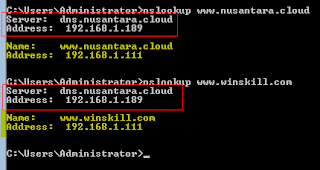
Di Linux biasa menggunakan Bash Shell kini di Windows akan mencoba untuk menggunakan PowerShell, pada post ini akan melakukan konfigurasi Web Server IIS, secara konsep sama kalau biasanya yang mulai belajar dari Linux menggunakan Apache dengan menginstall paket apache2, mengupload/mengedit file di /var/www, mengaktifkan modul, mencopy/mengedit file virtualhost di /etc/apache2/sites-available, sekarang akan mencoba melakukan hal-hal tersebut dengan menggunakan Windows Server Core, semua konfigurasi akan dilakukan dengan mode CLI melalui PowerShell. Oh ya sebelumnya pastikan Windows Server Core sudah mempunyai Hostname, IP, DNS bisa dikonfigurasi dengan perintah sconfig kemudian ikuti menu yang ada. Di DNS Server (bisa pakai Windows DNS Server/Linux Bind9/software lainnya) buat record untuk www.nusantara.cloud dan www.winskill.com  ke IP Windows Server Core. Disini DNS Server dengan IP: 192.168.1.189 Web Server dengan IP: 192.168.1.111 akan melayani 2 web yait...

Konfigurasi SSH Server di Windows

S SH Server (OpenSSH) di Windows Server 2019 Saat ini OpenSSH Server sudah tersedia secara bawaan di Windows Server 2019 dan dapat diaktifkan melalui fitur Windows Capability . Rangkuman Langkah Konfigurasi 1. Cek Ketersediaan Fitur OpenSSH Jalankan perintah berikut di PowerShell: Get-WindowsCapability -Online | ? Name -like 'OpenSSH*' 2. Install OpenSSH Client & Server Add-WindowsCapability -Online -Name OpenSSH.Client~~~~0.0.1.0 Add-WindowsCapability -Online -Name OpenSSH.Server~~~~0.0.1.0 3. Jalankan Service SSH Start-Service sshd 4. Aktifkan Auto Start Saat Boot Set-Service -Name sshd -StartupType Automatic 5. Cek Firewall Rule SSH Get-NetFirewallRule -Name *ssh* Pastikan rule OpenSSH-Server-In-TCP dalam kondisi Enabled agar port 22 dapat diakses. Hasil Setelah konfigurasi selesai, Windows Server sudah dapat diakses menggunakan SSH melalui: ssh username@IP_Server Referensi Resmi Dokumentasi lengkap dapat dilihat di: https://docs.microsoft.co...

Configure VPN for client access (IKEV2 with machine certificate authentication)

Gambar
Example: VPN Configure VPN for client access. Use the IKEv2 protocol and make sure authentication is done by client certificate Use the IP range 172.16.0.50 – 172.16.0.79 The VPN clients should have access to all internal networks Note: Configure hostname, domain, name, IP, etc according to your project. Steps: 1. Configure machine certificate for router and client using Windows CA     Use template Workstation authentication (configure subject name format to Common name & DNS,  Application Policies to Server authentication  & Client authentication). 2. Configure VPN server using tools -> Routing and Remote access 3. Connect from client

How to Mount CIFS Shares from Windows Command Line

Connect Network Drive To map a network drive from windows command line: Click Start, and then click Run -> CMD Type the following, replacing Z: with drive letter you want to assign to the shared resource: net use Z: \\computer_name\share_name /PERSISTENT:YES Disconnect Network Drive To disconnect a mapped drive: Type the following, replacing Z: with drive letter of the shared resource: net use  Z: /delete

Cara Konfigurasi VPN Site-to-Site (S2S) di Windows Server via PowerShell

Panduan ini menjelaskan langkah-langkah instalasi Remote Access Role dan konfigurasi VPN Site-to-Site (IKEv2) menggunakan PowerShell pada Windows Server. 1️⃣ Buka PowerShell sebagai Administrator Pastikan menjalankan Run as Administrator agar semua perintah dapat diterapkan ke sistem. 2️⃣ Install Remote Access Role Install fitur Remote Access: Install-WindowsFeature RemoteAccess 3️⃣ Install Remote Access PowerShell Module Module ini diperlukan untuk menjalankan command VPN: Install-WindowsFeature RSAT-RemoteAccess-PowerShell 4️⃣ Install Routing Feature Fitur routing dibutuhkan untuk VPN S2S: Install-WindowsFeature Routing 5️⃣ Restart Server Setelah semua fitur terpasang, restart sistem: Restart-Computer ⚙️ Konfigurasi VPN Site-to-Site 6️⃣ Install Remote Access VPN S2S Aktifkan mode VPN Site-to-Site: Install-RemoteAccess -VpnType VpnS2S 7️⃣ Tambahkan Interface VPN S2S Contoh konfigurasi interface VPN: Add-VpnS2SInterface ` -Name "EDGE1" ` -Destin...

Konfigurasi DFS Replication

Gambar
DFS Create a Namespace with the name “dfs” Add JKT-DC1 as the second server for this Namespace Create DFS links for the department shares (Helpdesk, Technician, Manager) Create DFS Replication to implement a backup of the department shares on JKT-DC1. The shares should be replicated like this: - JKT-DC2: D:\shares\departments\Helpdesk -> JKT-DC1: C:\backup\Helpdesk - JKT-DC2: D:\shares\departments\Technician -> JKT-DC1: C:\backup\Technician - JKT-DC2: D:\shares\departments\Manager -> JKT-DC1: C:\backup\Manager 1. Install DFS Namespace dan DFS Replication di server-server yang akan digunakan. 2. Konfigurasi DFS Namespace, buka DFS Management, klik kanan pada menu Namespaces, pilih New Namespace, masukkan namespace sesuai yang ditentukan pada work task. 3. Konfigurasi DFS Replication di salah satu server, maka konfigurasi akan tercopy di member server lainnya, berikut screencast nya. Screencast nya silent mode, silakan diamati, ini sebagai referensi aja. Semakin ba...

How to configure Remote Desktop Services (RDS) Remote Apps Windows Server

Gambar
Requirements Install Remote Desktop Services (RDS) ⚠️ Do NOT install the RD Licensing component. Configure Web Access for Terminal Services. The RDS login page must be accessible using the URL: https://rds.jakarta.net Ensure that only the following users can log in via RDP: RDS_user1 RDS_user2 Publish the following RemoteApps on the web portal: WordPad → accessible only by RDS_user1 Calculator → accessible only by RDS_user2 Marking Criteria 1. RDS Web Access Open a browser and access: https://rds.jakarta.net Important Notes By default, the RDS Web Access page is located at: https://rds.jakarta.net/RDWeb To allow access directly via: https://rds.jakarta.net you must configure IIS redirection . Refer to the screencast for guidance. The task does not require removing certificate warnings. If the task required no certificate warnings , then you would need: A certificate signed by a Certificate Authority (CA) The certificate must be t...

WORK TASK SERVER JKT-DC1

Gambar
Configure the server with the hostname, domain and IP specified in the appendix My computer -> properties RUN -> ncpa.cpl Install/Configure Modify the default firewall rules to allow ICMP (ping) traffic CMD -> netsh firewall set icmpsetting 8 enable Active Directory Configure this server as the initial domain controller for jakarta.net Configure an ONE -WAY (Forest) trust between the domains jakarta.net and mataram.net - Users from jakarta.net must have access to resources from mataram.net but not vice versa

Simple request certificate to CA using certreq

There are some ways to make a certificate, you can use web enrollment, command enrollment, GUI enrollment. Below steps are using command Open an elevated Powershell session Launch Notepad Add the following lines to the new file: [NewRequest] Subject="cn=yourServer.yourDomain.com" Exportable=TRUE [RequestAttributes] CertificateTemplate="Web Server" Save the file as something ending in .inf, for example iis.inf Run: certreq -new d:\temp\iis.inf d:\temp\request.txt Run: certreq -submit d:\temp\request.txt d:\temp\iiscert.cer Run: certreq -accept d:\temp\iiscert.cer

Enable remote management windows server core

Berikut perintah nya netsh advfirewall set currentprofile settings remotemanagement enable Jalankan perintah diatas di windows server core, kemudian  lakukan di windows GUI untuk meremote windows firewall pada server core. Dengan cara  buka MMC, add snap-in windows firewall pilih another computer, masukkan nama/ip windows server core. Untuk rule remote disk management gunakan perintah berikut, jalankan perintah berikut di windows server core dan GUI. netsh advfirewall firewall set rule group=”Remote Volume Management” new enable=yes Dan banyak hal-hal lainnya yang bisa diremote pada server core dari server GUI.

Remote Server Administration Tools for Windows 10

Ini adalah tool yang digunakan untuk melakukan konfigurasi/management ke windows server secara remote, untuk tool nya bisa di download di link berikut: https://www.microsoft.com/en-us/download/details.aspx?id=45520 Join windows 10 ke domain windows server, kemudian install dan gunakan tool RSAT menggunakan Administrator.

What happens when Windows 10 Enterprise Trial Expires?

If you fail to activate this evaluation after installation, or if your evaluation period expires, the desktop background will turn black, you will see a persistent desktop notification indicating that the system is not genuine, and the PC will shut down every hour. Reference:  https://www.microsoft.com/en-us/evalcenter/evaluate-windows-10-enterprise Part: Preinstall Information

Download Windows 10 Enterprise

Windows 10 Enterprise dirancang untuk memenuhi kebutuhan organisasi besar dan menengah dengan menyediakan profesional TI. Untuk halaman download disini https://www.microsoft.com/en-us/evalcenter/evaluate-windows-10-enterprise Ada beberapa versi di Windows 10, untuk melihat history versi dan update nya bisa di lihat di link berikut https://support.microsoft.com/en-us/help/4099479 Untuk download cumulative update secara offline bisa ke website berikut, lihat informasi history versi dan update di website diatas, misalnya KB4338817 cari di kolom search dan download yang sesuai. https://www.catalog.update.microsoft.com/Home.aspx

Menginstall Hyper-V di Windows 10

1. Pastikan hardware virtualization support itu on di BIOS settings 2. Klik tombol search di taskbar 3. Ketik turn windows features on or off dan pilih itu 4. Pilih dan enable Hyper-V

Cara menghilangkan cacing di ms word

Gambar
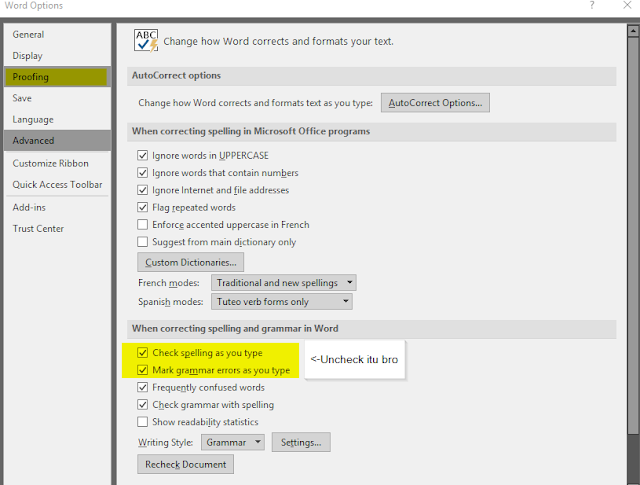
Kenapa ada cacing di bawah tulisan ketika lagi ngetik? karena kata yang ditulis tidak sesuai dengan english dictionary, coba kalau nulisnya pakai tulisan english yang sesuai dictionary pasti tidak akan ada cacingnya, tapi ini sangat membantu kita ketika ingin menulis dalam bahasa inggris karena jika kita salah ketik maka dikasih tau sama ms wordnya dikasih cacing. Nah di kesempatan kali ini saya memberikan tutorial tentang bagaimana menghilangkan cacing dibawah tulisan waktu lagi ngetik di ms word Cara pertama adalah uncheck check spelling dan mark grammer error seperti di bawah ini Untuk masuk ke dialog diatas klik File -> Options -> Proofing  di Microsoft Word Kelemahan dari cara diatas adalah tidak membantu kita dalam menulis dengan bahasa inggris. Nah untuk tetap mempertahankan spelling check english, ada nih cara kedua dengan memasukkan kata-kata dalam bahasa indonesia di bagian custom dictionaries ms word, nah berikut adalah kata-kata dalam bahasa indonesi...

Cara restart / stop windows service (services.msc) dengan bat / cmd

Menjalankan Service SQL Server Secara Manual dengan Batch Script (Windows) Sebenarnya service di Windows bisa di-set automatic start melalui Services Manager agar langsung berjalan saat boot. Namun jika tidak ingin SQL Server terus memakan resource CPU dan memory ketika tidak digunakan, maka lebih baik diset manual start dan dijalankan hanya saat diperlukan. Supaya lebih praktis, kita bisa membuat shortcut batch script sehingga tidak perlu membuka services.msc setiap ingin menjalankan service. 🔎 Cara Melihat Daftar Service Windows 1️⃣ Melalui GUI Tekan: Win + R → services.msc 2️⃣ Melalui Command Prompt Buka CMD lalu jalankan: sc query Perintah ini akan menampilkan semua service beserta statusnya. ▶️ Script BAT untuk START SQL Server Buat file misalnya: start-sql.bat Isi dengan: @echo off net start MSSQL$SQLEXPRESS ⏹️ Script untuk STOP Service Jika ingin menghentikan service, cukup ganti start menjadi stop : @echo off net stop MSSQL$SQLEXPRESS 📌 Cara Men...

How to use command slmgr to check windows license

Cek current license slmgr /dli Melihat detail information license slmgr /dlv Melihat expiration information slmgr /xpr Untuk extend license period slmgr /rearm

Cara menghapus profil wifi di windows 8

Terkadang ada masalah dalam koneksi wifi dengan koneksi wifi yang sebelumnya tersimpan di windows karena kemungkinan ada pergantian setting di access point oleh karena itu perlu dilakukan penghapusan profil wifi, di windows 8 berbeda dengan windows sebelumnya seperti di windows 7 untuk di windows 8 kita bisa pakai perintah command line dibawah ini : 1. Melihat profil wifi apasaja yang pernah dipakai  netsh wlan show profiles 2. Menghapus salah satu profi wifi netsh wlan delete profile name="abc-wifi"

Dasar Active Directory dan Group Policy