Postingan

Konfigurasi Remote VPN L2TP/IPSec di Cisco Router IOS

Konfigurasi Remote VPN L2TP/IPsec di Cisco Router IOS Pada kesempatan kali ini kita akan mencoba melakukan konfigurasi Remote Access VPN L2TP/IPsec pada router IOS. L2TP merupakan salah satu teknologi VPN selain: PPTP IKEv2 VPN SSL VPN Namun L2TP tidak memiliki enkripsi , sehingga perlu diamankan menggunakan IPSec . Teknologi ini juga bisa diterapkan di: Linux → menggunakan StrongSwan Windows Server → menggunakan fitur RRAS 🧠 Konsep Singkat L2TP/IPsec Alur kerjanya: 1️⃣ IPSec membuat secure tunnel terlebih dahulu 2️⃣ Setelah itu L2TP berjalan di dalam tunnel IPSec 3️⃣ User melakukan autentikasi PPP (MS-CHAPv2) Jadi: IPSec = keamanan (enkripsi & integrity) L2TP = tunneling PPP user 🏗 Topologi Sederhana Client VPN → Internet → Router EDGE IP Router: WAN EDGE = 1.1.1.1 Pool VPN = 192.168.168.5 – 192.168.168.10 Loopback = 192.168.168.254 ⚙️ Komponen Konfigurasi Penting Berikut penjelasan bagian konfigurasi dari show run . 1️⃣ Enable L2TP VPDN vp...

Basic IPTables rules for SSH and Webserver

set the default policy to DROP #iptables -P INPUT DROP #iptables -P OUTPUT ACCEPT #iptables -P FORWARD DROP  accept anything on localhost #iptables -A INPUT -i lo -j ACCEPT #iptables -A OUTPUT -o lo -j ACCEPT  allow traffic once a connection has been made #iptables -A INPUT -m state --state RELATED,ESTABLISHED -j ACCEPT  accept anything on ssh port #iptables -A INPUT -p tcp --dport 22 -j ACCEPT  accept anything on http and https port #iptables -A INPUT -p tcp --dport 80 -j ACCEPT #iptables -A INPUT -p tcp --dport 443 -j ACCEPT  to save #apt-get install iptables-persistent

Configure Reverse Proxy With Apache2 on Debian 9

Load modules #a2enmod proxy #a2enmod proxy_http Virtualhost Configuration #cd /etc/apache2/sites-available/ #vi myproxyweb <VirtualHost *:80>         ServerName mywebsite.id         ProxyPass       /       http://192.168.1.1:8080/         ProxyPassReverse   /    http://192.168.1.1:8080/ </VirtualHost> Disable Default #a2dissite default Enable new Virtualhost #a2ensite myproxyweb Restart Apache #systemctl restart apache2 OK!

Cara menguplod file ke github

Buat account github Buat repository Gunakan alamat repository yang akan dipakai, contoh:  git remote add origin https://github.com/username/new_repo Ke direktori file file yang akan di uplod Misalnya cd /home/myproject git init git add nama_file atau nama_direktori atau . (tanda titik untuk semua file) git commit -m "My first project"  (pesan untuk catatan) git push origin master Cek git status

Cara konfigurasi Web Server IIS di Windows Server Core dengan PowerShell

Gambar
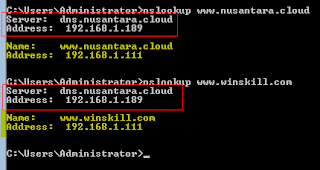
Di Linux biasa menggunakan Bash Shell kini di Windows akan mencoba untuk menggunakan PowerShell, pada post ini akan melakukan konfigurasi Web Server IIS, secara konsep sama kalau biasanya yang mulai belajar dari Linux menggunakan Apache dengan menginstall paket apache2, mengupload/mengedit file di /var/www, mengaktifkan modul, mencopy/mengedit file virtualhost di /etc/apache2/sites-available, sekarang akan mencoba melakukan hal-hal tersebut dengan menggunakan Windows Server Core, semua konfigurasi akan dilakukan dengan mode CLI melalui PowerShell. Oh ya sebelumnya pastikan Windows Server Core sudah mempunyai Hostname, IP, DNS bisa dikonfigurasi dengan perintah sconfig kemudian ikuti menu yang ada. Di DNS Server (bisa pakai Windows DNS Server/Linux Bind9/software lainnya) buat record untuk www.nusantara.cloud dan www.winskill.com  ke IP Windows Server Core. Disini DNS Server dengan IP: 192.168.1.189 Web Server dengan IP: 192.168.1.111 akan melayani 2 web yait...

Dasar konfigurasi NFS Server di Debian

Kon figurasi NFS Server dan Client di Linux Contoh: IP Fileserver: 192.168.1.1 1. Konfigurasi di Fileserver (NFS Server) Install layanan NFS Server: apt-get install nfs-kernel-server Buat direktori yang akan di-share: mkdir -p /data/marketing Edit file konfigurasi export: nano /etc/exports Tambahkan baris berikut: /data/marketing 192.168.1.0/24(rw,no_root_squash) Penjelasan: rw → Client bisa read & write no_root_squash → User root di client tetap dianggap root di server Restart layanan NFS: /etc/init.d/nfs-kernel-server restart 2. Konfigurasi di Client Install NFS client: apt-get install nfs-common Buat mount point: mkdir /mnt/marketing Mount NFS share: mount -t nfs 192.168.1.1:/data/marketing /mnt/marketing 3. Hasil Sekarang NFS server sudah berhasil di-mount pada: /mnt/marketing Semua file yang disimpan di folder tersebut akan otomatis tersimpan di server NFS. 4. Mount Otomatis Saat Boot Agar mount tidak hilang setelah reboot, tambahkan di: n...

How to configure freeradius with local users

Gambar
OS: Debian9 Package: Freeradius 3.0 Hostname: srv1 This is step by step how to configure freeradius with local users (/etc/passwd) In this scenario, I want to create 100 users with a password and no shell login to the system capability that can be done with the following commands: for i in `seq 1 1 100` do useradd user$i echo -e "P@ssw0rd\nP@ssw0rd" | passwd user$i done common-auth-radius  is for radius users Edit like below: And then configure no login with PAM pam_list_file in the /etc/pam.d/common-auth to limit login to the system Only users in the /etc/loginusers can login to the system Create a file loginusers in the /etc/ Because FreeRADIUS 3 no longer accepts "Auth-Type := System". It's by default use unix pasword so we want to just configure for client use like belo w: /etc/init.d/freeradius restart Testing in srv2, we need to install freeradius-utils for testing purpose, use radtest ...